- 安装基础软件
``` sudo apt update sudo apt-get upgrade sudo apt-get install gnome-panel gnome-settings-daemon metacity nautilus gnome-terminal sudo apt install tightvncserver vncserver
注: 在防火墙上打开 VNC Server 的监听端口 VNC Server 用到了三个端口:5801()、5901()、6001 ```
- 修改~/.vnc/xstartup
``` #!/bin/bash export $(dbus-launch) export XKL_XMODMAP_DISABLE=1 export XDG_CURRENT_DESKTOP="GNOME-Flashback:Unity" export XDG_MENU_PREFIX="gnome-flashback-" unset SESSION_MANAGER
gnome-panel & gnome-settings-daemon & metacity & nautilus & gnome-terminal &
# [ -x /etc/vnc/xstartup ] && exec /etc/vnc/xstartup # [ -r $HOME/.Xresources ] && xrdb $HOME/.Xresources
autocutsel -fork xrdb $HOME/.Xresources xsetroot -solid grey vncconfig -iconic & x-terminal-emulator -geometry 80x24+10+10 -ls -title "$VNCDESKTOP Desktop" & gnome-session --session=gnome-flashback-metacity --disable-acceleration-check --debug & ```
- 启动
chmod +x ~/.vnc/xstartup
  vncserver :1
机器无显示屏情况-设置虚拟显示屏 [转自:https://leimao.github.io/blog/Remote-Linux-Desktop/]
Set Up Remote Linux Desktop
X Forwarding
We have to first enable X forwarding.
We SSH to the remote Linux computer with -XC where X is the X service and C allows data compression.
$ ssh -XC leimao@192.168.0.23
Welcome to Ubuntu 18.04.5 LTS (GNU/Linux 4.9.201-tegra aarch64)

 * Documentation:  https://help.ubuntu.com
 * Management:     https://landscape.canonical.com
 * Support:        https://ubuntu.com/advantage
This system has been minimized by removing packages and content that are
not required on a system that users do not log into.

To restore this content, you can run the 'unminimize' command.


Last login: Sat May 15 09:18:28 2021 from 192.168.0.19
/usr/bin/xauth:  file /home/leimao/.Xauthority does not exist
We install xauth if it has not been installed on the remote Linux computer.
$ sudo apt update
$ sudo apt install -y xauth
Make sure X11Forwarding is yes in /etc/ssh/sshd_config.
$ cat /etc/ssh/sshd_config | grep X11Forwarding
X11Forwarding yes
Restart OpenSSH.
sudo systemctl restart sshd
Confirm X forwarding is enabled.
$ echo $DISPLAY
localhost:10.0
Quick test X forwarding with X applications.
$ sudo apt install -y x11-apps
$ xclock
The GUI of the X applications will show up on our local computer.
We could also try FireFox browser.
$ sudo apt install -y firefox
$ firefox
Linux Desktop Forwarding
We have run single X applications successfully. Can we forward the entire remote Linux desktop? Sure, we can.
We will have to install the following dependencies.
$ sudo touch /dev/fuse
$ sudo apt install -y xfce4 xfce4-goodies gnome-icon-theme libcanberra-gtk-module
Run the following command on the remote Linux computer while we are still ssh -X in.
$ xfce4-session
The forwarded desktop will show up on our local computer.
Opening X applications from the forwarded desktop is fine. But we were not able to open terminal to run commands.
Linux Desktop Forwarding via VNC
A better way to forward the Linux Desktop is to use VNC service.
To install the VNC server, we will install tightvncserver on the remote Linux computer.
$ sudo apt install -y tightvncserver
Then we could start a virtual desktop with an id of 1.
$ vncserver :1 -geometry 1920x1080 -depth 24
We could then connect to the remote Linux desktop using VNC client software on our local computer.
Remmina is installed by default on my local Ubuntu 20.04 LTS. Here we just have to input the remote Linux computer IP address with the VNC virtual desktop id, and press Enter.
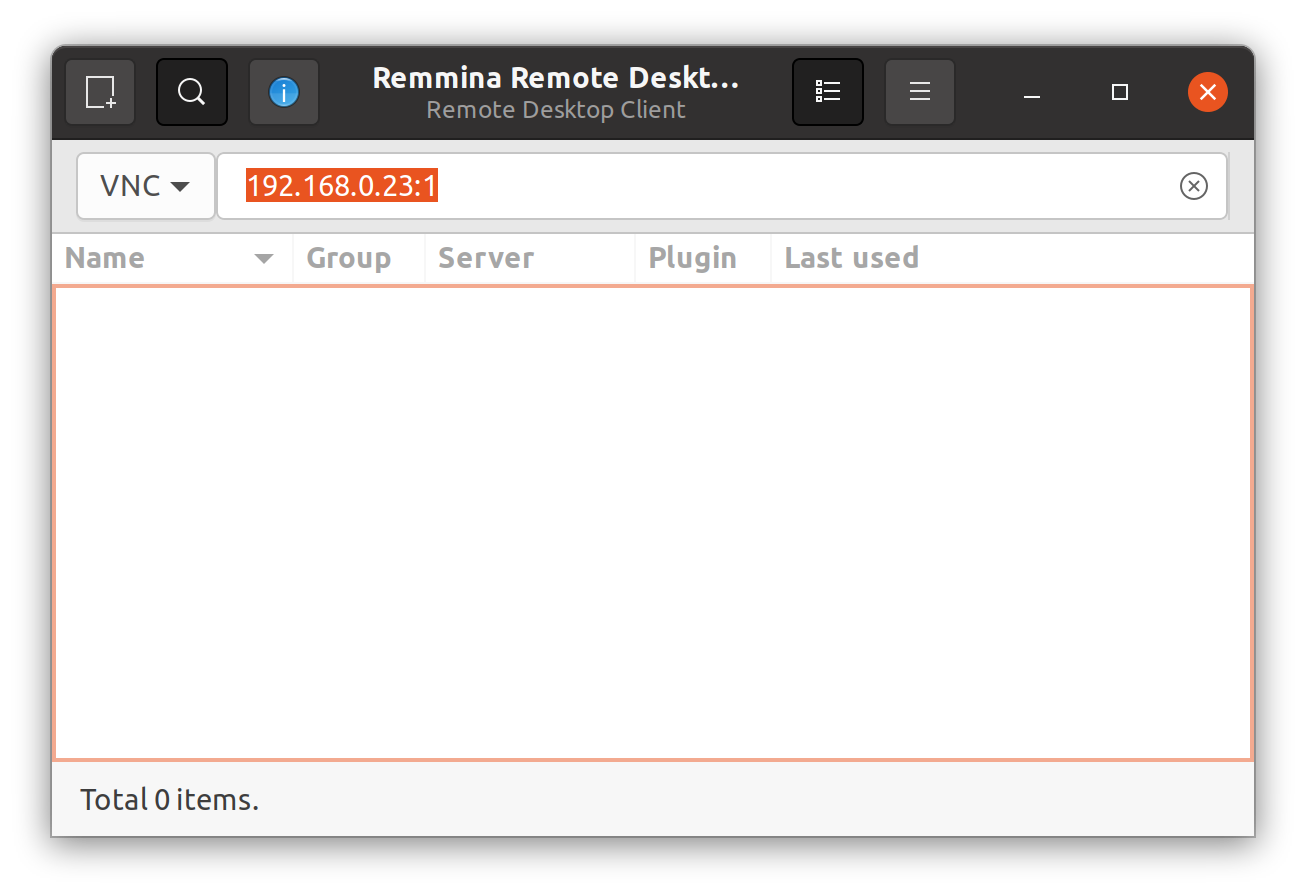
Remmina
The connection was successful. However, we only see gray screen and could not do anything.
To fix this problem, we disconnect the VNC connection and kill the virtual desktop.
$ vncserver -kill :1
We will install lxde on the remote Linux computer.
$ sudo apt install -y lxde
We will modify the ~/.vnc/xstartup by adding /usr/bin/startlxde to it. The modified file will look like this.
$ cat ~/.vnc/xstartup
#!/bin/sh

xrdb $HOME/.Xresources
xsetroot -solid grey
#x-terminal-emulator -geometry 80x24+10+10 -ls -title "$VNCDESKTOP Desktop" &
#x-window-manager &
# Fix to make GNOME work
export XKL_XMODMAP_DISABLE=1
/etc/X11/Xsession
/usr/bin/startlxde
Finally, restart VNC server.
$ vncserver :1 -geometry 1920x1080 -depth 24
This time, the remote Linux desktop shows correctly in Remmina.
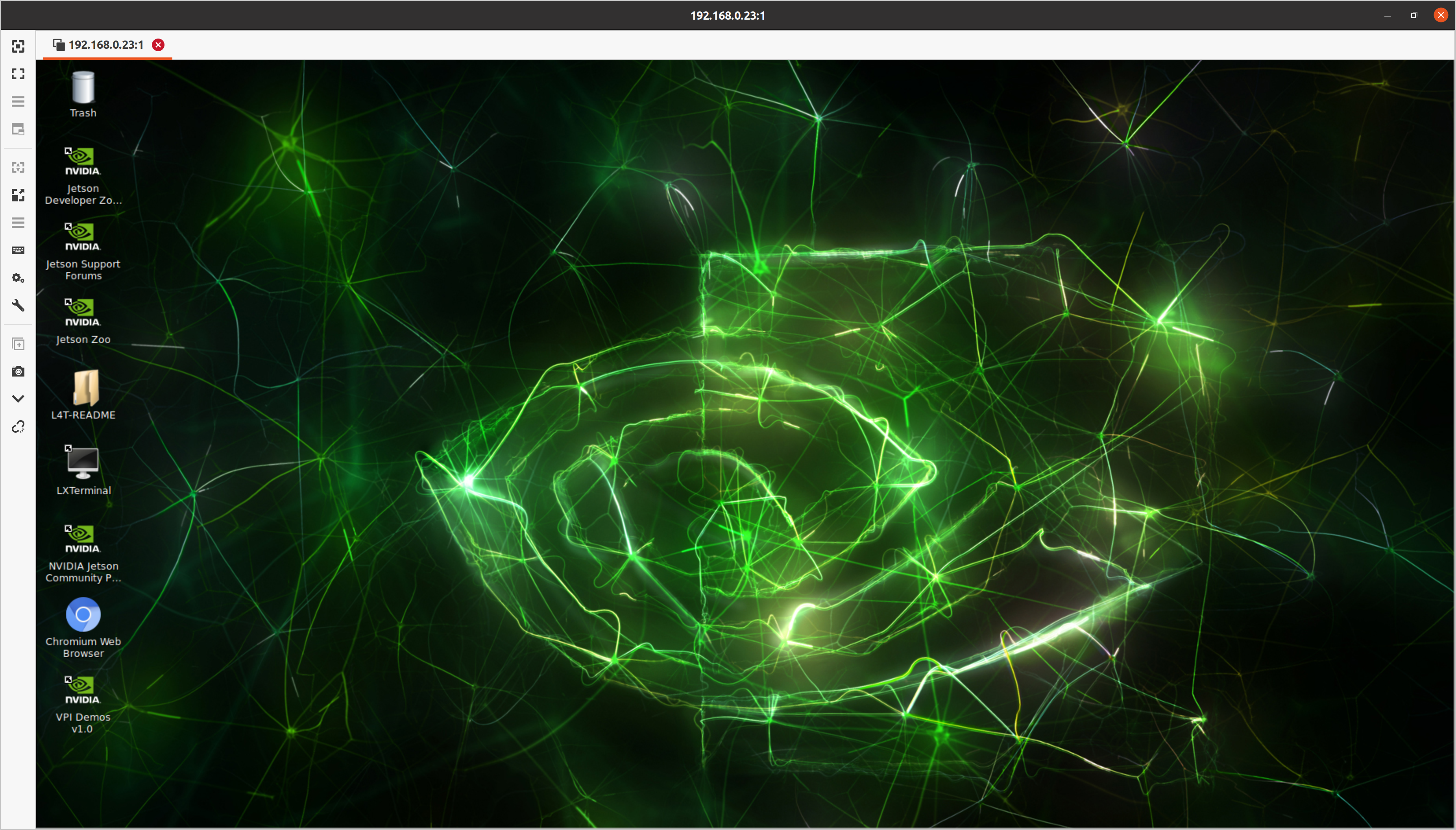
Remote Linux Desktop
There are some inconvenience that copy and paste text between the local computer and the remote desktop does not work. To fix this problem, again, we disconnect the VNC connection and kill the virtual desktop.
$ vncserver -kill :1
We will install autocutsel on the remote Linux computer.
$ sudo apt install -y autocutsel
We will modify the ~/.vnc/xstartup by adding autocutsel -fork to it. The modified file will look like this.
$ cat ~/.vnc/xstartup
#!/bin/sh

xrdb $HOME/.Xresources
xsetroot -solid grey
autocutsel -fork
#x-terminal-emulator -geometry 80x24+10+10 -ls -title "$VNCDESKTOP Desktop" &
#x-window-manager &
# Fix to make GNOME work
export XKL_XMODMAP_DISABLE=1
/etc/X11/Xsession
/usr/bin/startlxde
Finally, restart VNC server.
$ vncserver :1 -geometry 1920x1080 -depth 24
Now, we could copy and paste easily between the local computer and the remote desktop.
References
- Remote Linux Desktop on Your VPS with SSH and VNC
- Grey Screen Comes on Connecting to VNC Server
- Running X Client Using Virtual X Server Xvfb
- Raspberry Pi: Enabling Copy and Paste over VNC
- https://leimao.github.io/blog/Remote-Linux-Desktop/